
Add PDF Letterhead to Tally.ERP 9 and TallyPrime Reports
Tally.ERP 9 and TallyPrime are widely used for accounting, invoicing and business reporting. But when reports leave your administration system, they also need to look professional. A plain PDF report may contain the right data, but it often misses the visual identity of your company.
Fabreasy PDF Creator helps you solve that problem outside Tally. You print your Tally report to the Fabreasy printer or drag an existing PDF into Fabreasy. The software then adds your PDF letterhead automatically.
Your files stay on your own Windows PC. No cloud upload. No online PDF editor. No manual editing afterwards.
Local Windows software. No cloud upload. No credit card needed.
Why add PDF letterhead to Tally reports?
Reports, statements, invoices and other PDF documents from Tally are often shared directly with customers, accountants, suppliers or internal teams. When these documents include your logo, company details, colors and layout, they look more consistent and trustworthy.
With a PDF letterhead, you can make Tally documents look like official company communication. This is especially useful when your business already uses printed letterhead or a digital brand layout for Word and Excel documents.
Fabreasy can apply that same look to PDF reports generated from Tally.ERP 9 or TallyPrime.
First page letterhead and continuation sheet
Many business documents need more than one page. The first page usually contains the full letterhead with logo, address details and footer information. The following pages often need a cleaner continuation sheet.
Fabreasy supports this workflow. You can select one PDF file as the main letterhead and another PDF file as the continuation sheet. Then you choose where each file should be used.
- First page uses your full company letterhead
- Page 2 and further pages use your continuation sheet
- All pages keep the original Tally report content sharp and readable
This makes Fabreasy useful for longer Tally reports, account statements, financial summaries and other multipage PDF documents.
How it works with Tally.ERP 9 and TallyPrime
Fabreasy does not need to change your Tally installation. It works as a local Windows PDF printer and PDF processing tool.
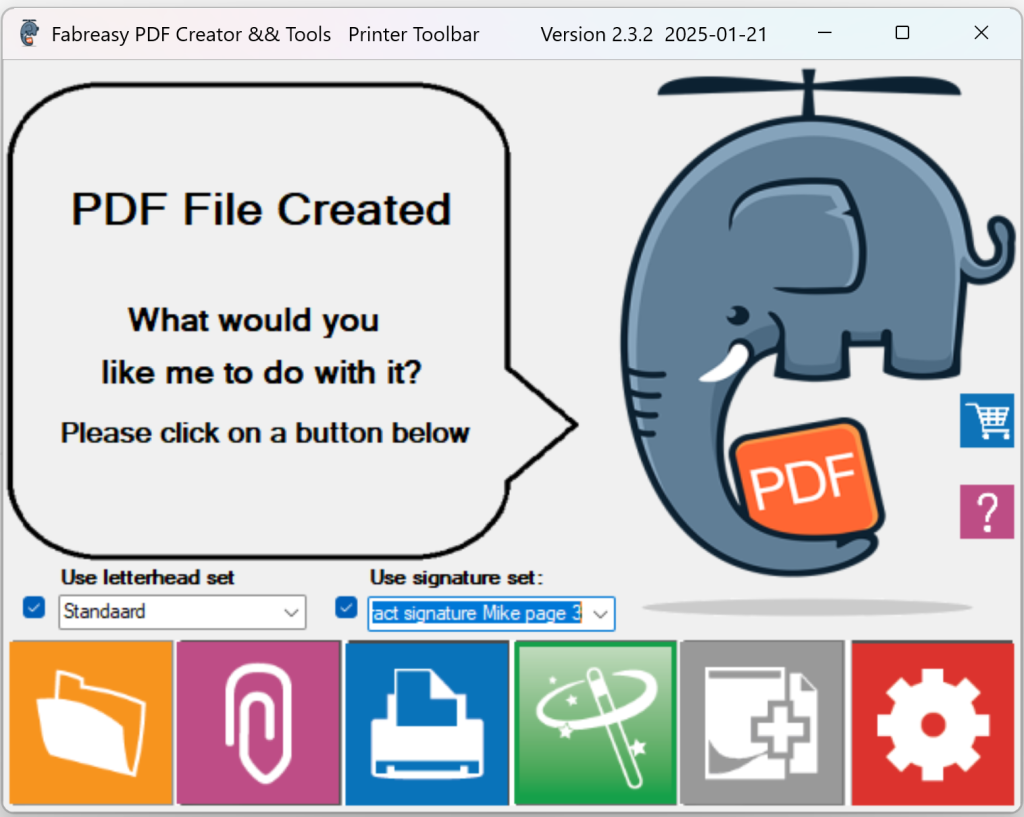
When your report is ready in Tally, choose the Fabreasy printer. Fabreasy creates the PDF and applies your selected letterhead settings. You can also export a report from Tally as PDF first and then drag that PDF into Fabreasy.
This gives you two practical workflows:
- Print directly from Tally to Fabreasy
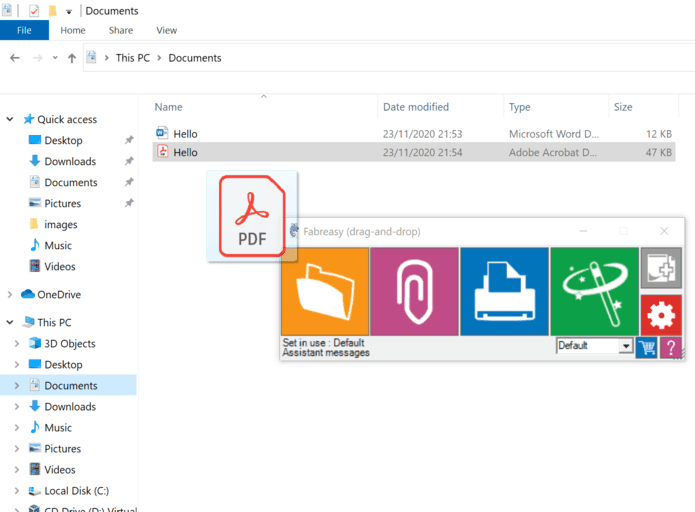
- Drag and drop existing Tally PDF reports into Fabreasy
Both methods are useful. Direct printing is fast for daily work. Drag and drop is useful when you already have PDF files or when you want to process multiple documents.
What you need before you start
For the best result, use your letterhead as a PDF file. A vector PDF is recommended because it keeps logos, lines and text sharp when the final PDF is created.
You need:
- A PDF version of your main letterhead
- A PDF version of your continuation sheet, if needed
- Fabreasy PDF Creator installed on your Windows PC
- A Tally report that can be printed or exported as PDF
Once this is set up, you do not need to place the letterhead manually every time.
Step by step setup in Fabreasy
- Download and install Fabreasy PDF Creator. You can try it free for 14 days.
- Open the Fabreasy Dashboard from the Windows Start menu.
- Open Fabreasy Settings.
- Go to the Letterhead tab.
- Select your PDF letterhead.
- Add your letterhead PDF to the Fabreasy library.
- Choose the file and set it as your main letterhead.
- Select a continuation sheet if your documents need one.
- Choose where the letterhead should be placed, for example on the first page only or from page 2 onward.
- Save your settings.
Fabreasy is now ready to apply your PDF letterhead to Tally.ERP 9 and TallyPrime reports.
Use the same letterhead workflow for other documents
The same setup can also be used outside Tally. Fabreasy works with many Windows applications because it can process documents through the print function or by drag and drop.
You can use Fabreasy for:
- Word documents
- Excel sheets
- Existing PDF files
- Reports from accounting software
- Financial documents
- Quotes and proposals
- Internal company documents
This is useful when you want all outgoing documents to follow the same company style, regardless of where the document was created.
Local Windows software, no cloud upload
Many online PDF tools require you to upload your document before they can edit it. That is not always desirable for financial reports, customer data or internal business documents.
Fabreasy works locally on your Windows PC. Your Tally reports and PDF files stay on your own computer. This makes the workflow simple and keeps sensitive documents out of online PDF editors.
Add more than just letterhead
Fabreasy PDF Creator is mainly built to turn business documents into finished branded PDFs. Besides adding a PDF letterhead, it can also help with other document finishing tasks.
Depending on your setup, you can use Fabreasy to:
- Add a visual signature
- Use different letterhead sets
- Process existing PDF files
- Split or combine PDF documents
- Prepare documents for sending by e-mail
- Create consistent PDFs from different Windows applications
This makes Fabreasy useful for businesses that want a simple and repeatable document workflow.
Try Fabreasy with your own Tally reports
The easiest way to see if Fabreasy fits your workflow is to test it with your own reports. Use your own PDF letterhead, create or export a report from Tally.ERP 9 or TallyPrime, and let Fabreasy apply the layout.
You can try Fabreasy PDF Creator free for 14 days. No cloud upload is needed. Your files stay on your own Windows PC.
Local Windows software. No cloud upload. Add PDF letterhead to Tally reports, Word documents, Excel files and existing PDFs.
Frequently asked questions
Can I add PDF letterhead to TallyPrime reports?
Yes. Fabreasy can add a PDF letterhead to reports created in TallyPrime. You can print the report to the Fabreasy printer or process an existing PDF file with drag and drop.
Does this also work with Tally.ERP 9?
Yes. If you can print the report from Tally.ERP 9 or export it as a PDF, you can use Fabreasy to apply your PDF letterhead.
Can I use a different layout for page 2 and later pages?
Yes. Fabreasy supports a main letterhead and a continuation sheet. This is useful when the first page needs a full layout and the following pages need a simpler design.
Will my letterhead stay sharp?
For the best result, use a vector PDF version of your letterhead. This keeps logos, lines and text sharp in the final PDF.
Do I need to upload my Tally reports?
No. Fabreasy is local Windows software. Your files stay on your own PC.
Can I use Fabreasy for documents from Word and Excel too?
Yes. Fabreasy also works with Word, Excel and other Windows applications that can print. You can also drag existing PDF files into Fabreasy.
Is Fabreasy only for Tally?
No. Tally is one example. Fabreasy can add PDF letterhead to many types of business documents, including reports from accounting software, office documents and existing PDF files.