
Want your Xero invoices and reports on your own letterhead? Download them from Xero as a PDF and drag them onto Fabreasy, or print them from your browser to the Fabreasy printer. Fabreasy adds your PDF letterhead and, if you use one, a continuation sheet, on your own Windows PC, without uploading anything.
Step by step:
- Download and install Fabreasy PDF Creator (14 days free).
- Have your letterhead ready as a one-page PDF. In Word you make it with Save As and the file type PDF. A continuation sheet for the following pages is optional.
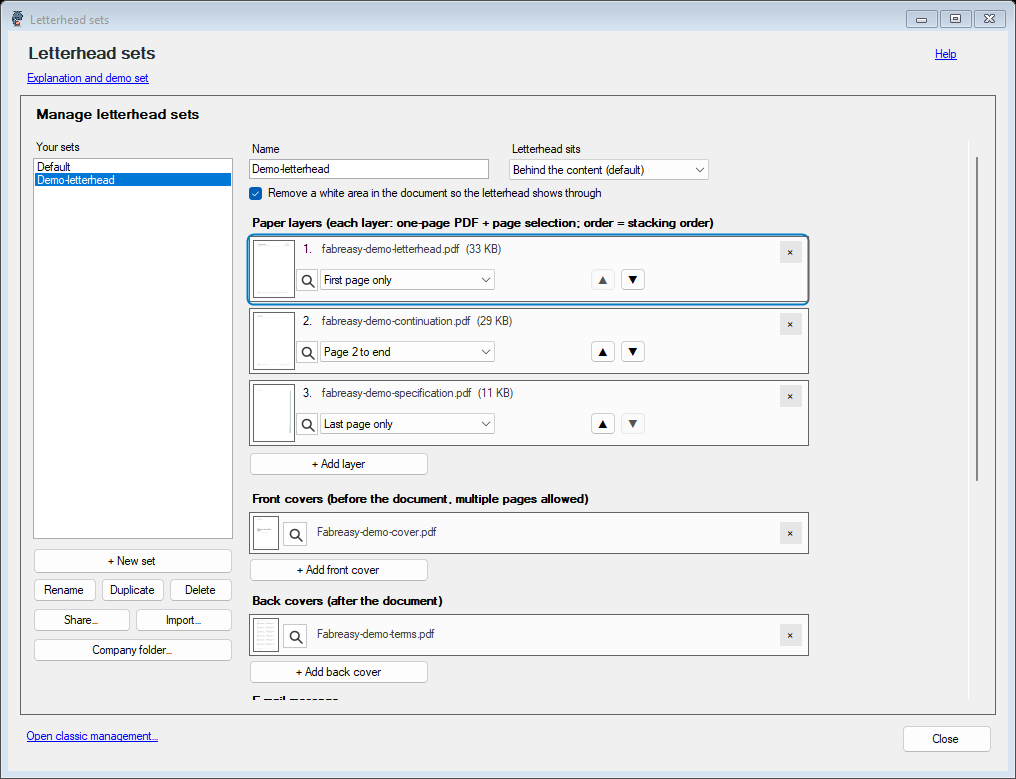
- Open PDF Letterhead sets in the Dashboard and click Default. Click the thumbnail of the layer on First page only, then Add file…, choose your letterhead and click Use.
- Do the same for the layer on Page 2 to end with your continuation sheet, or remove that layer with ×. In a set you can also add other layers, cover pages or your terms and conditions.
- Download the invoice or report from Xero as a PDF. Open Drag & Drop in the Dashboard, choose the set under Use letterhead set and drag the PDF onto the Folder box. The result is next to the original, as
<name>_Output.pdf.
You can also print from your browser to the printer Fabreasy PDF Creator (Printer) and choose the set in the toolbar that appears. The full explanation is in the manual.
Fabreasy is now ready to add letterhead to reports from Xero. You can now print from any application to the Fabreasy printer driver. Fabreasy Office Ribbon has been added to Word and Excel, allowing you to create documents with letterhead with just one click. Do you have PDF documents from a report generator (Xero / Nextens / Exact / Fiscal-online / etc.)? You can drag and drop these documents into Fabreasy, either one at a time or as entire folders.
Optional: send the report straight to the right recipient
With SendReady, the paid extension of PDF Creator, you type a label as a line of text on the first page, for example TO:john@company.example. SendReady reads it, adds the letterhead and, if you want, your signature, and prepares the e-mail to that address in Outlook. The label itself does not appear in the PDF.
How do you add PDF letterhead to reports from Xero? Easily with Fabreasy PDF Creator
Many businesses ask, “How do I add PDF letterhead to reports from Xero?” This is an important question, especially as digital work becomes the norm. Reports are often the first document customers receive, and the appearance of these can say a lot about your company’s professionalism. With Fabreasy PDF Creator, you can easily add PDF letterhead to reports from Xero without losing quality, ensuring a consistent and professional presentation.
Why add PDF letterhead to reports from Xero?
Reports from Xero are a key part of your business administration. They are sent to customers daily and must always look professional. By adding PDF letterhead, you ensure that your company’s branding is clearly displayed on every report. This includes your logo, colors, and other branding elements. It strengthens your brand identity and ensures that every report looks as if it were printed on official letterhead.
Integrating PDF letterhead into reports from Xero offers a simple way to enhance your brand identity. By adding PDF letterhead, you ensure that every document from the system has the professional appearance you expect from printed correspondence.
The challenge of adding PDF letterhead to reports from Xero
At first, adding PDF letterhead to reports from Xero may seem difficult. Many tools that automate this process can reduce the quality of the letterhead, resulting in blurry images or distorted layouts. You want to avoid this because reports represent your company and must always appear sharp and professional.
With Fabreasy PDF Creator, this issue is resolved. The software ensures that your PDF letterhead is added to your reports from Xero in perfect quality, without loss of resolution or color. This means every report you send will look as professional as a printed version, inspiring confidence in your customers.
Fabreasy: User-friendly for everyone
One of the biggest advantages of Fabreasy PDF Creator is its ease of use. Whether you’re a seasoned IT professional or less technically inclined, Fabreasy makes it easy for anyone to add PDF letterhead to reports from Xero effortlessly. The intuitive interface guides you step by step through the process, allowing you to generate professional-looking reports within minutes.
Additionally, you don’t need to perform any complex actions. With Fabreasy PDF Creator, you can quickly and efficiently add your letterhead to your reports from Xero without hassle or technical challenges.
More than just editing reports
While adding PDF letterhead to reports from Xero is a core function of Fabreasy PDF Creator, the software offers much more. For example, you can also add a visual signature based on text recognition. This means the software can automatically place a signature on a report or document based on the content. This is especially useful for quickly and automatically signing reports without manually editing each document.
Additionally, Fabreasy allows you to split PDF files and adjust layouts. This makes it a versatile tool perfect for various document management processes within your organization.
Save time and prevent errors
Manually adding PDF letterhead to reports from Xero can be time-consuming and prone to errors. With Fabreasy PDF Creator, this process is fully automated, saving time and reducing the chance of mistakes. You won’t have to worry about misplacing elements or losing formatting.
The software takes the work off your hands and ensures that every report you generate from Xero is automatically provided with your company letterhead. This increases the efficiency and professionalism of your business administration.
Fabreasy: The solution for reports from Xero
As more companies transition to digital documentation, the need for reliable tools to manage reports from Xero grows. Fabreasy PDF Creator is the ideal solution for adding professional PDF letterhead to your reports without compromising quality.
With Fabreasy, you ensure that your reports from Xero always look professional and consistent. This not only helps you make a good impression on clients but also ensures that your brand identity remains strong, no matter the type of document. Whether you’re sharing reports, creating quotes, or sending other business documents, Fabreasy helps you maintain your corporate identity in every communication.
With its user-friendly interface, fast processing, and versatile features, Fabreasy PDF Creator is the perfect addition to Xero for anyone who wants to work professionally and efficiently. It gives you the ability to seamlessly add PDF letterhead to all your documents, resulting in professional-looking reports that perfectly represent your company’s branding.