
New from Fabreasy: PDFixer, a local Windows app for fast PDF corrections. Open the the website
PDFIXER · LOCAL WINDOWS PDF EDITOR · FROM FABREASY
Add a visible signature or stamp to PDF — local Windows software
PDFixer is a separate app from the makers of Fabreasy PDF Creator. Use it to add a visible signature, stamp, image, text or page number to an existing PDF without sending the file to an online PDF service.
It is built for the last practical step before a PDF goes to a customer, supplier or colleague.
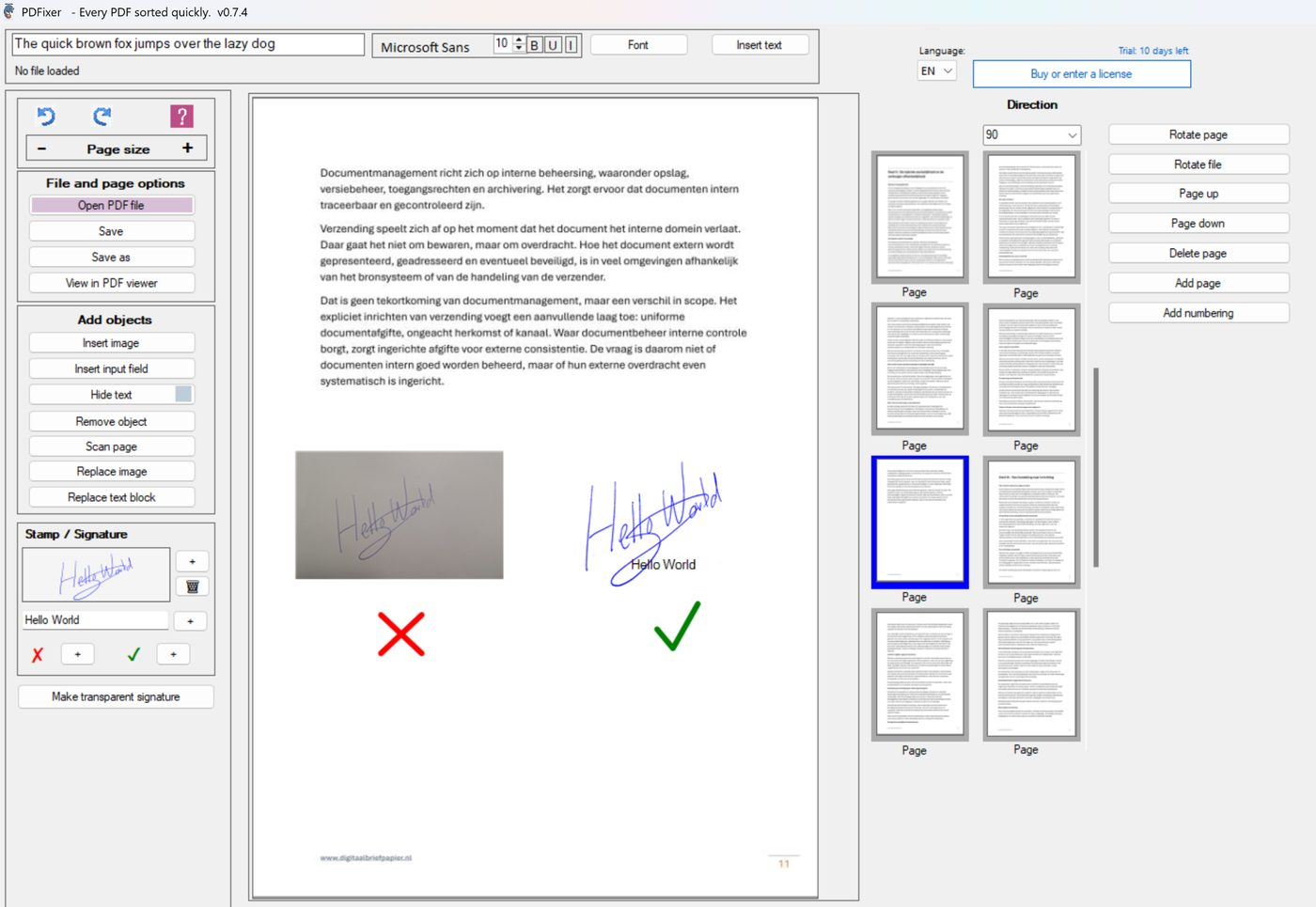
(Click the image to enlarge)
What PDFixer is made for
PDFixer is not a full document creation workflow. Fabreasy PDF Creator already does that. PDFixer starts where an existing PDF still needs a small, visible correction.
Open the PDF, add what is missing, adjust the position and save locally. That can be a handwritten signature, an approval stamp, a short text note, a logo, a replacement image, page numbers or a page order correction.
PDFixer does not create a certified cryptographic digital signature. It places visible elements on a PDF page. That distinction matters, because many users simply need the signature or approval mark to be visible in the document.
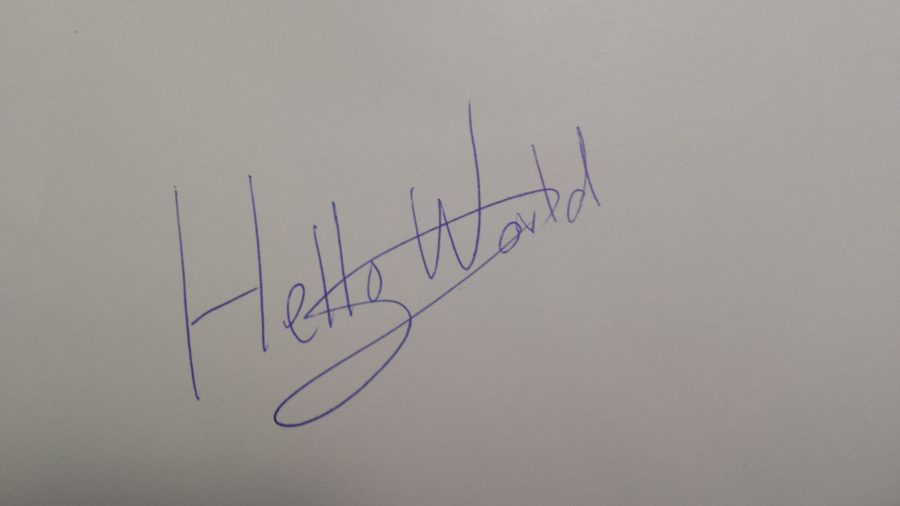
Before
a phone photo on paper
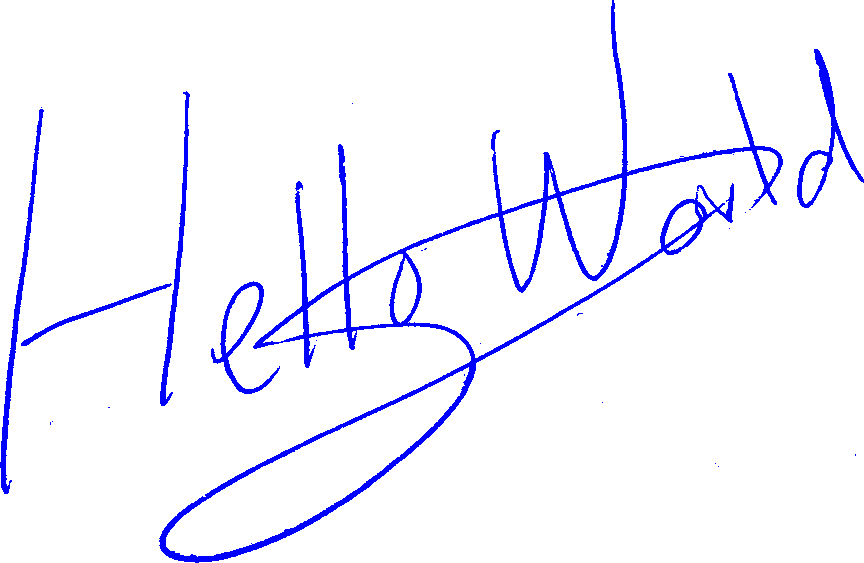
After
a reusable transparent signature
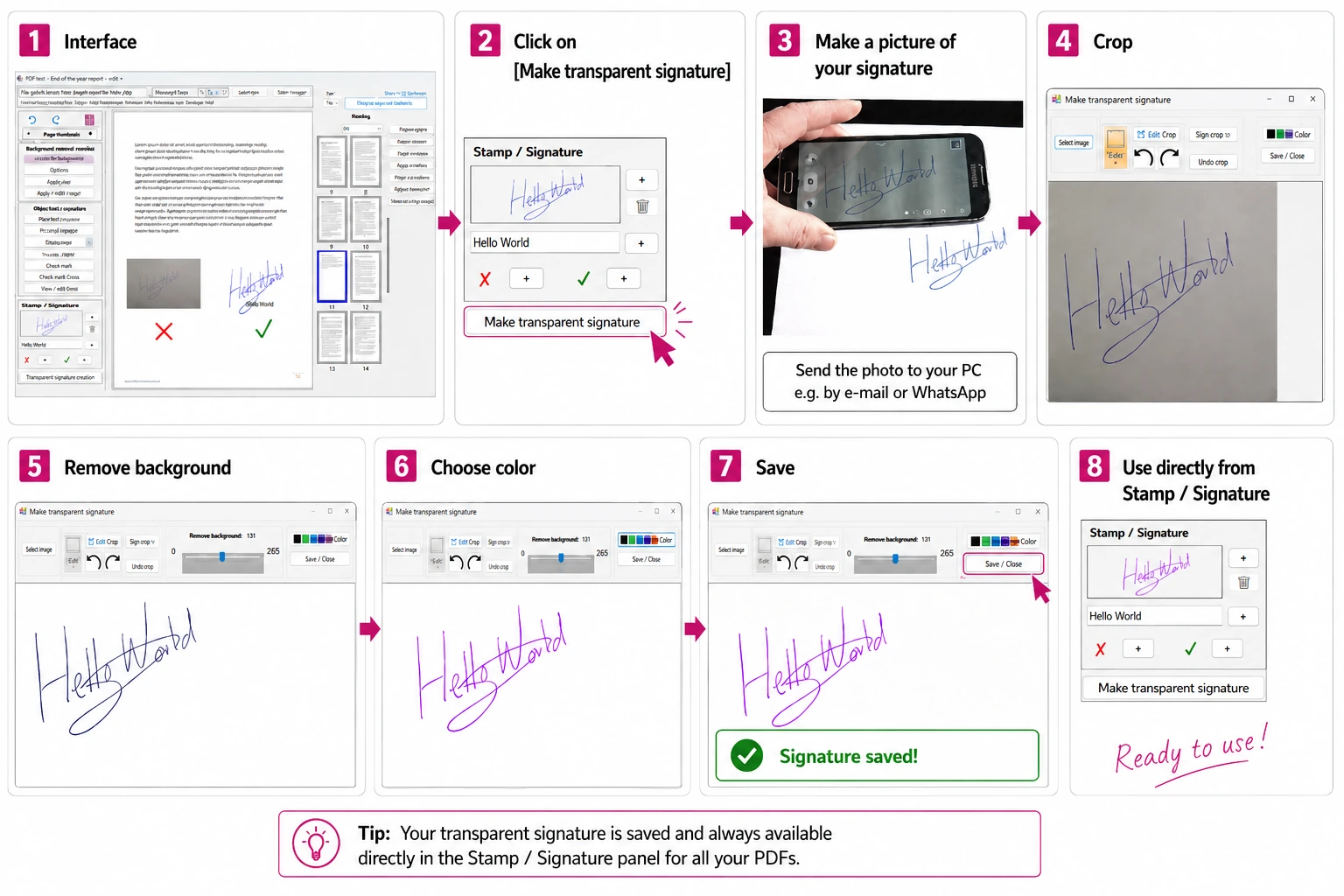
From paper signature to a clean PDF signature
- Write your signature clearly on white paper.
- Take a sharp photo with your phone.
- Move the photo to your Windows PC (e.g. email or Whatsapp)
- Open your PDF in PDFixer.
- Use the transparent signature tool to remove the paper background.
- Place the signature on the PDF page.
- Resize, move and save the PDF locally.
This gives you a practical signature image you can reuse for future PDFs. No Photoshop, no browser upload and no Adobe account.
Visible signature
Place a handwritten signature image exactly where it belongs on a PDF page.
Stamp or approval mark
Add approved, paid, reviewed or checked marks without printing and scanning again.
Fast page cleanup
Rotate pages, remove pages, add text, insert images and prepare the final PDF locally.
Why local software is useful
Online PDF tools are fine for harmless files. They are a poor fit when the PDF contains customer data, financial details, contracts or internal notes.
PDFixer runs on Windows, so the document stays on your own PC. That makes it a practical tool for accountants, office teams, freelancers and small companies that need quick PDF corrections without a cloud detour.
PDFixer and Fabreasy PDF Creator
Fabreasy PDF Creator is for creating branded PDFs from Word, Excel and other Windows software.
PDFixer is for editing a PDF that already exists. It is the small tool for the final correction, signature, stamp or page action.
Open PDFixer
These links are intentionally placed here as normal crawlable links, so Google can discover the PDFixer site from the already indexed Fabreasy PDF Creator domain.
Typical tasks
- Add a visible signature to a PDF
- Create a transparent signature image
- Add a stamp or approval mark
- Add text to an existing PDF
- Insert an image or logo
- Rotate, delete or reorder pages
- Add page numbers before sending
FAQ about PDFixer
Short answers for people who want to know whether PDFixer fits their PDF workflow.
Can PDFixer add a signature to a PDF?
Is PDFixer an electronic signing platform?
Does my PDF need to be uploaded?
Can I also add stamps and text?
When should I use Fabreasy PDF Creator instead?
Try PDFixer for quick PDF corrections
Open the secure app download page and install PDFixer through the Microsoft Store installer.