
Misaligned logo in Excel fixed
Don’t build the letterhead into Excel itself: an image in the header shifts with the margins and the scaling, and often prints blurry. Print the sheet to the Fabreasy printer instead. Fabreasy adds your own PDF letterhead to the PDF, as sharp as the original, and per letterhead set you choose what goes on page 1 and on the following pages.
Step by step:
- Download and install Fabreasy PDF Creator (14 days free).
- Have your letterhead ready as a one-page PDF. In Word you make it with Save As and the file type PDF. A continuation sheet for the following pages is optional.
- Open PDF Letterhead sets in the Dashboard and click Default. Click the thumbnail of the layer on First page only, then Add file…, choose your letterhead and click Use.
- Do the same for the layer on Page 2 to end with your continuation sheet, or remove that layer with ×. In a set you can also add other layers, cover pages or your terms and conditions.
- In Excel, open the Fabreasy PDF Creator tab, choose the set under Letterhead set and click Folder. Under Output range you choose the entire workbook or the current sheet.
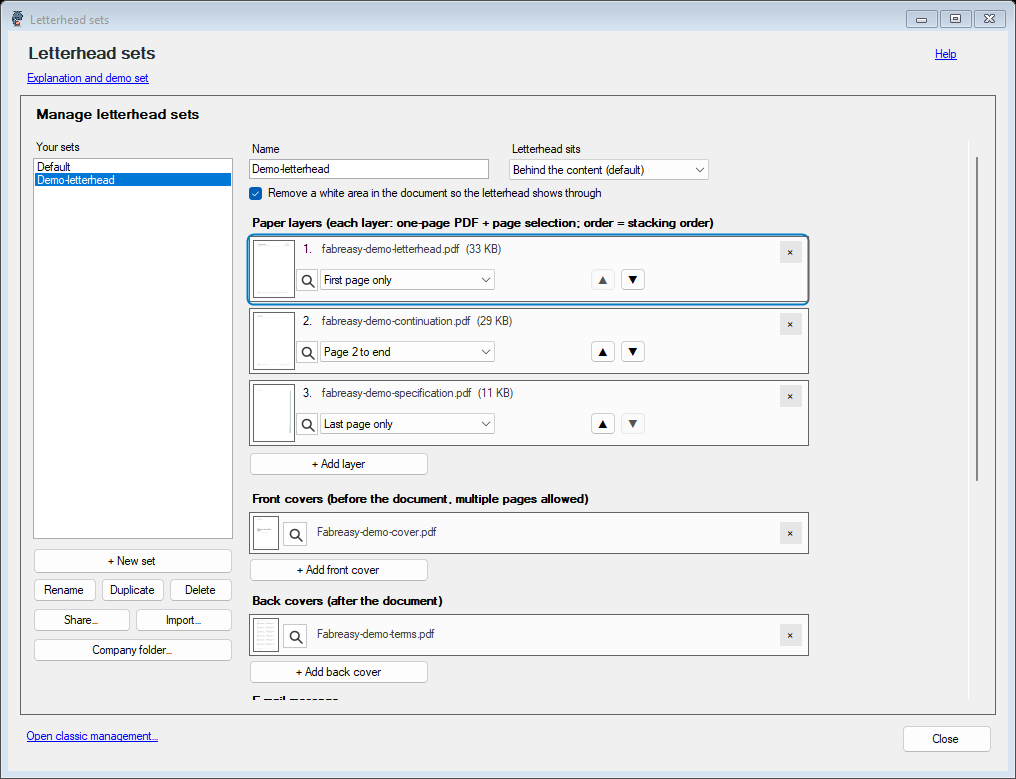
The PDF gets your letterhead exactly as the set describes it. Prefer printing? Choose the printer Fabreasy PDF Creator (Printer) and pick the set in the toolbar that appears. The full explanation is in the manual.
Incorporating PDF Letterheads in Excel: A Comprehensive Guide with Fabreasy PDF Creator
In today’s fast-paced business world, the question of “how to insert PDF letterhead in Excel” frequently arises. This isn’t merely about merging two files—it touches on the essence of professional branding in digital communications. Embedding branded elements into daily documents is crucial for maintaining a consistent image. Fabreasy PDF Creator provides a seamless solution to the common question: “how to insert PDF letterhead in Excel?”
Understanding the details of “how to insert PDF letterhead in Excel” is essential for businesses aiming to uphold a strong brand identity. While there are numerous tools available, Fabreasy PDF Creator stands out with its ability to integrate a standalone PDF letterhead into another document, ensuring that the professionalism of paper communications is preserved in the digital world.
The challenge isn’t just about learning “how to insert PDF letterhead in Excel”—it’s also about maintaining the original design and quality of the letterhead. Many tools can degrade the clarity of graphics, leading to reduced quality or distortions in the final document. Fabreasy solves this by producing high-quality outputs that preserve the integrity of your files. Whether your documents are shared within your organization or sent externally, Fabreasy ensures they meet the highest standards of branding and quality.
In the digital realm, professionals often wonder how to insert PDF letterheads in Excel without compromising quality or functionality. Fabreasy’s intuitive design bridges this gap, offering a simple, effective solution. Even non-tech-savvy users can easily navigate the software to achieve desired results without needing advanced technical skills.
Fabreasy PDF Creator offers more than just the ability to insert PDF letterheads into Excel. Its versatility caters to a wide range of documentation needs, from adjusting layouts and adding annotations to splitting PDFs or converting between different formats. This makes it a comprehensive tool for all documentation tasks, ensuring its relevance across various professional settings.
In an era where time is of the essence, Fabreasy’s efficiency is a major advantage. By streamlining the process of embedding PDFs into Excel documents, it saves time and reduces the likelihood of errors that can occur with manual methods. The software’s user-friendly interface further enhances this efficiency, guiding users effortlessly through each step.
In conclusion, as businesses continue to undergo digital transformation, the need for reliable and efficient tools becomes more pressing. The question of “how to insert PDF letterhead in Excel” underscores the demand for solutions that maintain branding standards while being easy to use. Fabreasy PDF Creator, with its robust features and straightforward interface, is the ideal answer to this challenge. It bridges the gap between traditional and digital documentation, ensuring that every communication reflects the company’s branding and values, regardless of the platform.
Tags: Shifted logo in Excel resolved, Misaligned logo in Excel fixed, Logo displacement in Excel solved, Logo shifting in Excel corrected, Floating logo issue in Excel resolved, Logo misplacement in Excel addressed.