
PDF letterhead not working in
Word? And why it never will.
Word simply can’t apply PDFs reliably. Blurry logos, shifting margins and broken layouts are unavoidable.
Fabreasy applies your original PDF letterhead automatically — in Word, Excel and any Windows application — flawlessly, every time.
✨ Trusted by 1,000+ professionals worldwide
No costs, no hassle, no registration, cancels automatically
The ultimate Add letterhead to PDF solution including a extensive PDF toolbox — Designed for Windows

Users often try to place a PDF letterhead directly inside Word, only to discover that the layout breaks every single time. Word cannot apply PDFs as true page backgrounds. It converts them to images, causing blurry logos, shifting margins and inconsistent continuation pages. No amount of tweaking, resizing or header editing will fix this. Word simply isn’t built for PDF letterheads — and that’s exactly why it never works.
Fabreasy approaches the process differently. Instead of forcing a PDF into Word, Fabreasy applies your original PDF letterhead automatically at the export stage. You create your document in Word as usual, click “Create PDF,” and Fabreasy places the correct letterhead and continuation sheet perfectly on every page. No distortion, no alignment issues, no manual adjustments.
Below you’ll find both the explanation of why Word fails and the steps to set up Fabreasy as the reliable solution.
How to insert pdf letterhead in Word
Follow the steps below:
- Download and install Fabreasy PDF Creator
- Open Word, the Fabreasy PDF Creator Office Ribbon is added to Word.
- Open Click on Fabreasy Settings (red radar icon)
- When setup is opened, click on the ‘Letterhead’ tab.
- Click on [Select] at the ‘Select your PDF Letterhead’
- The tab ‘Library’ shows the PDF-files available
- Click on [Select local PDF file] navigate to the Letterhead PDF files and add them to the library.
- Click on the Letterhead PDF and click on [Use selected file]
- Click on [Select] at ‘Other template to insert’ and select the file from the library.
- Check the setting to where the letterhead and follow-up paper needs to placed on the page (e.g. First page only / Page 2 to last).
- Click on [Save settings] and [Close]
HOW TO USE:How to insert pdf letterhead in your Word output document
- When all settings are saved. Open your Word document click on the button [Create PDF]. Your Word document is converted to PDF and your PDF letterhead is added to the PDF output document. Please note your letterhead is showed when you open the output PDF.
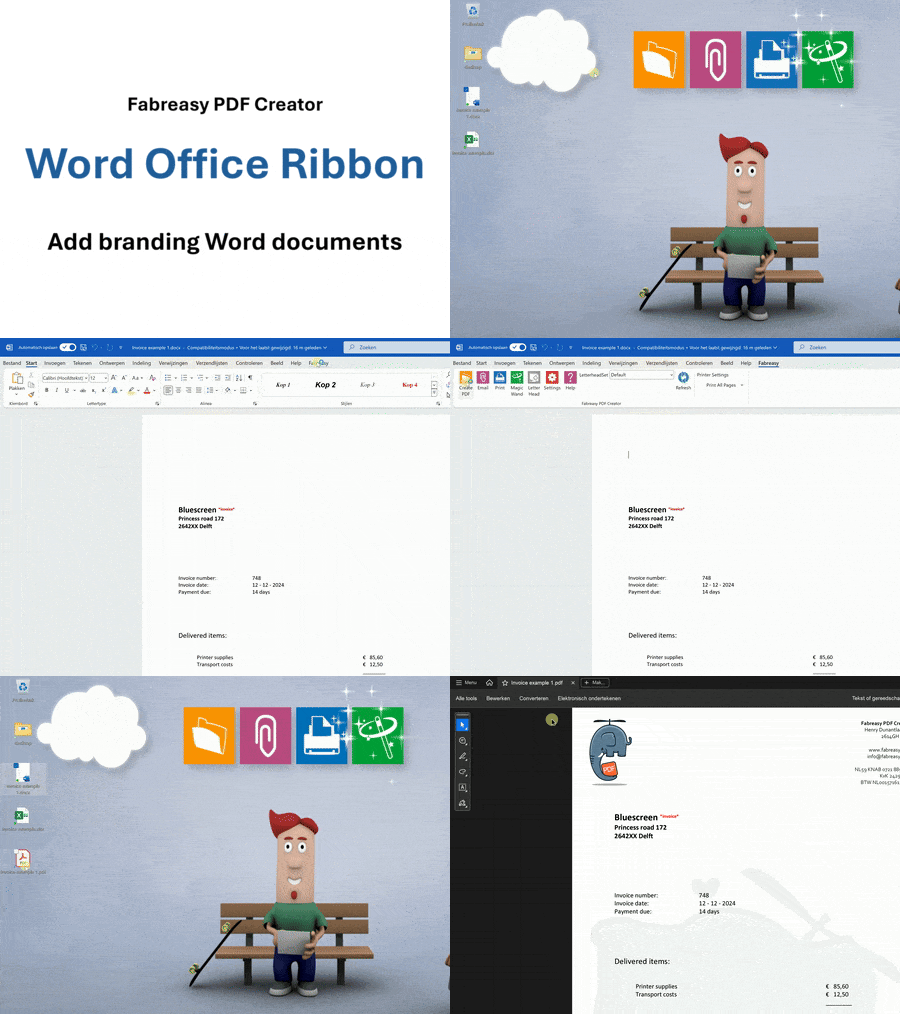
Add your Add letterhead to PDF and signature automatically
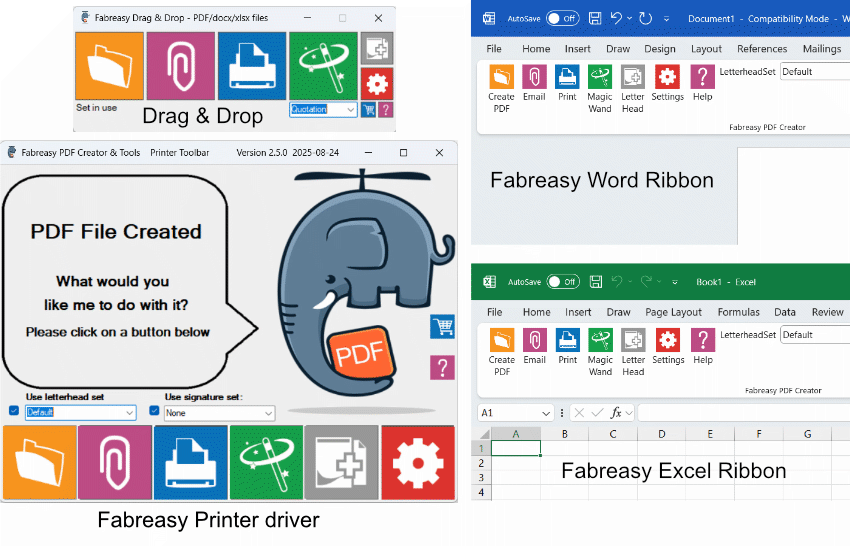
Create PDFs including Add letterhead to PDF quickly and effortlessly
Generate PDFs directly from Word and Excel, or by using the printer driver.
Already have PDFs? Just drag and drop them into Fabreasy.
Want to email instantly in the right branding? Simply click the paperclip
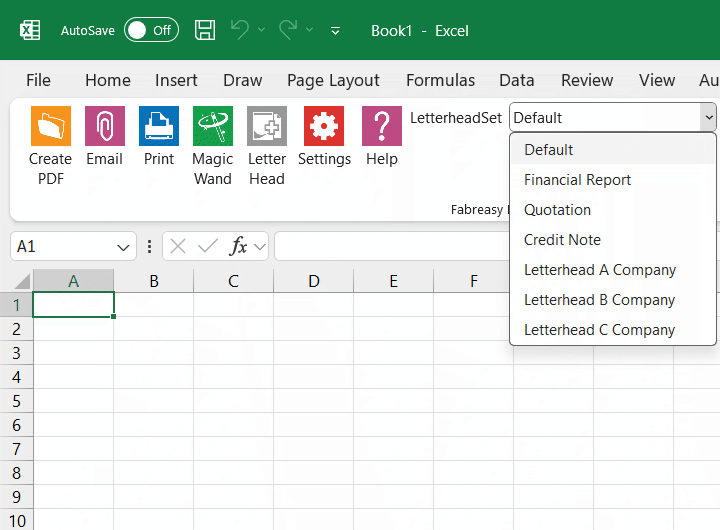
Add letterhead to PDF Sets for different business activities or companies
For example, for invoices, reports, or quotations.
Choose the order in which each type of letterhead is applied yourself.
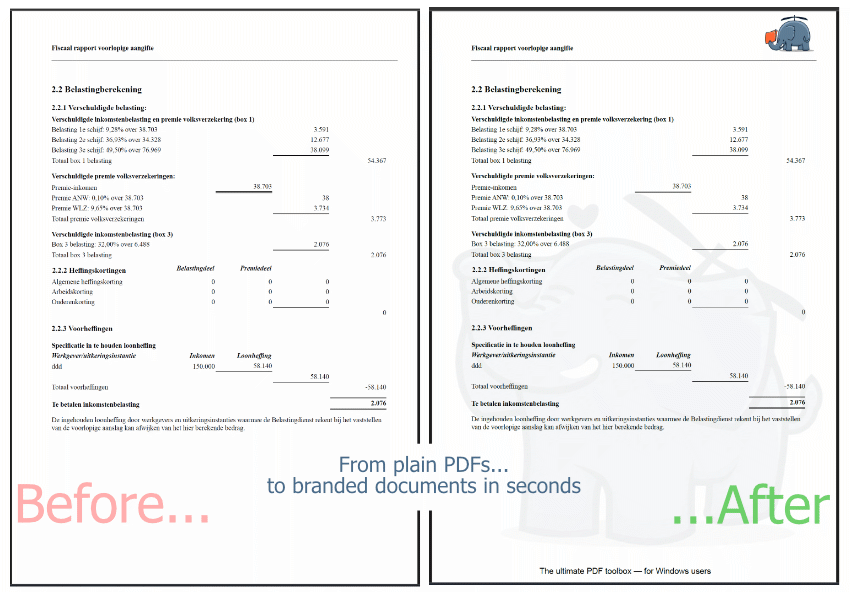
Add letterhead to PDF for your PDF reports
Drag and drop a PDF or entire folders into Fabreasy, and apply your branding to the desired pages.
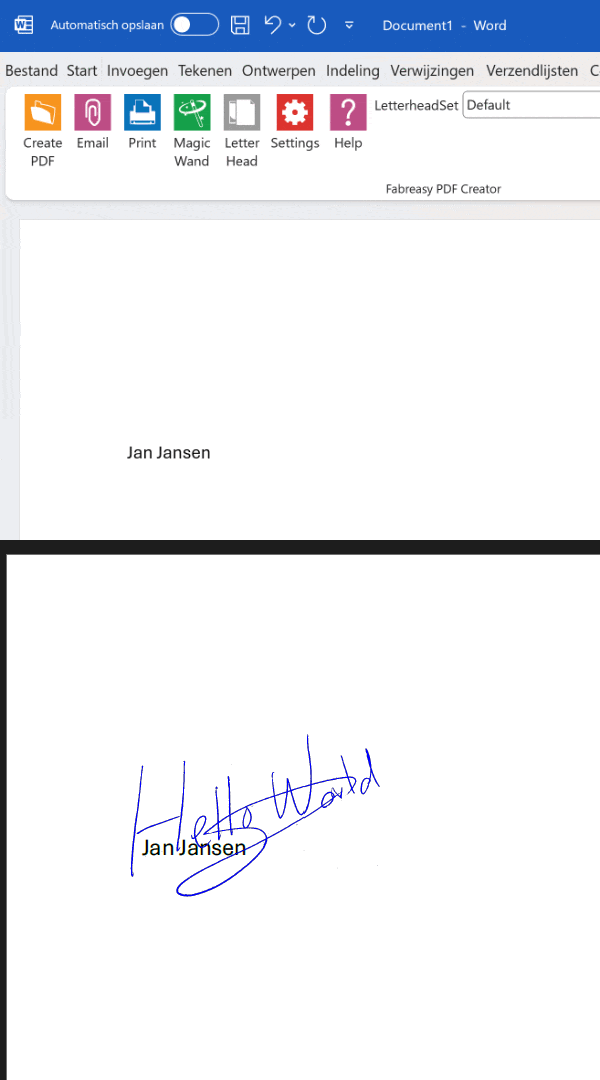
Easily add visual digital signatures
Place a signature in a fixed position or dynamically using text recognition.
No transparent signature yet? Quickly create one with our app.
Secure your PDF documents before sending
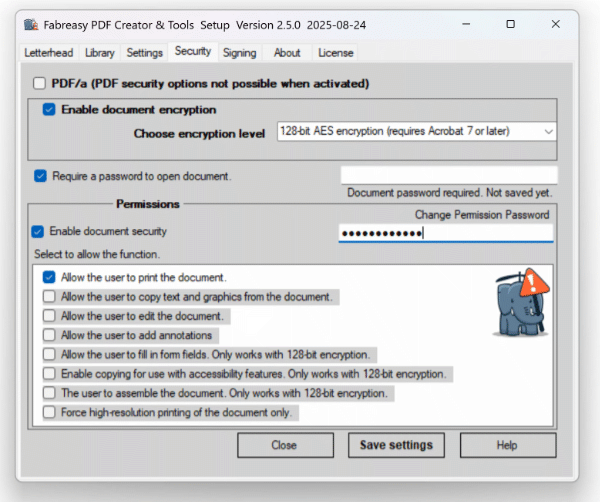
Secure your PDFs effectively and hassle-free
How securely are your PDFs being sent?
Is encryption enabled?
Is document editing disabled?
Can just anyone open the PDF?
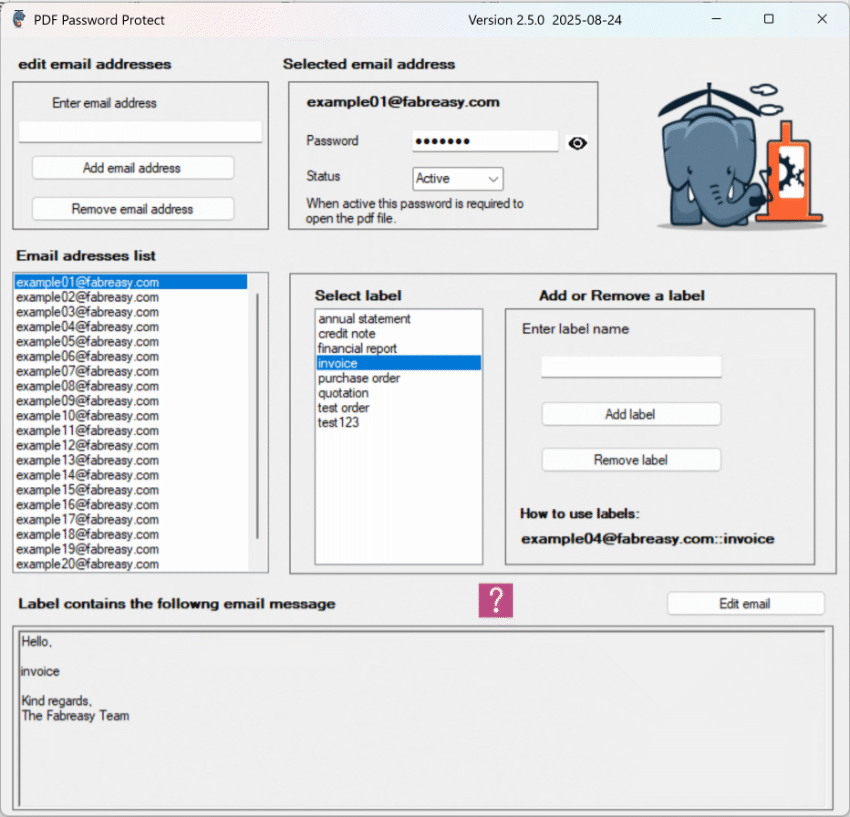
Password-Protect PDFs
Automatically secure PDFs with a password linked to the recipient’s email address — only the intended recipient can open the document. Keep your information safe and GDPR-compliant.
Easily personalize the subject line and email body with labels — saving you time and effort.
To enable automatic passwords, simply add TO:emailaddress:label (please note :label required)
to your document — and you’re all set.
.
Adjust and refine any existing PDF
Editing a PDF? Do it effortlessly.
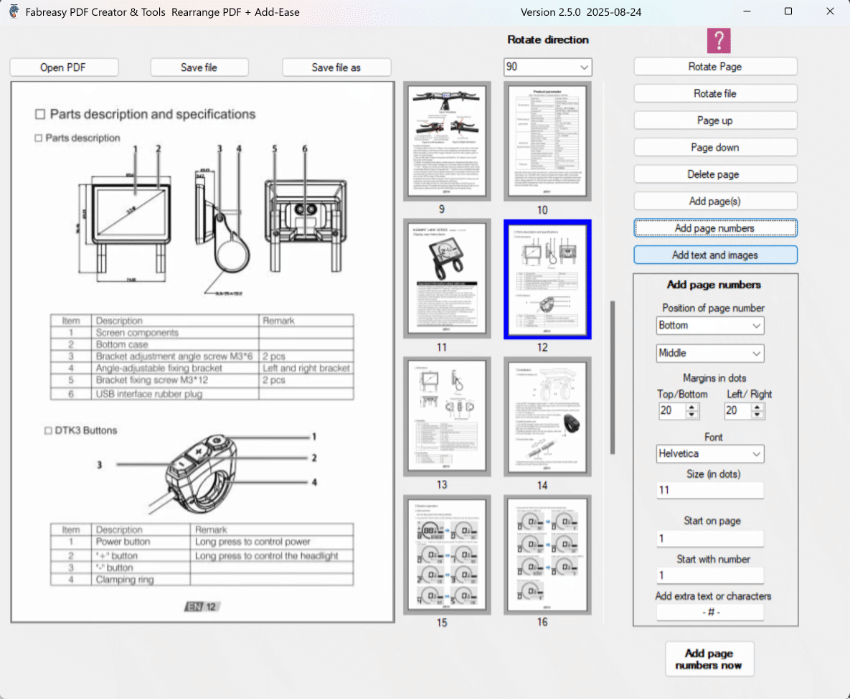
With the Fabreasy page rearrangement tool, you can easily move, delete, rotate, add pages and page numbers within a document.
Add-Ease: Add text and images directly to existing PDFs.
Complete PDF solution in one package
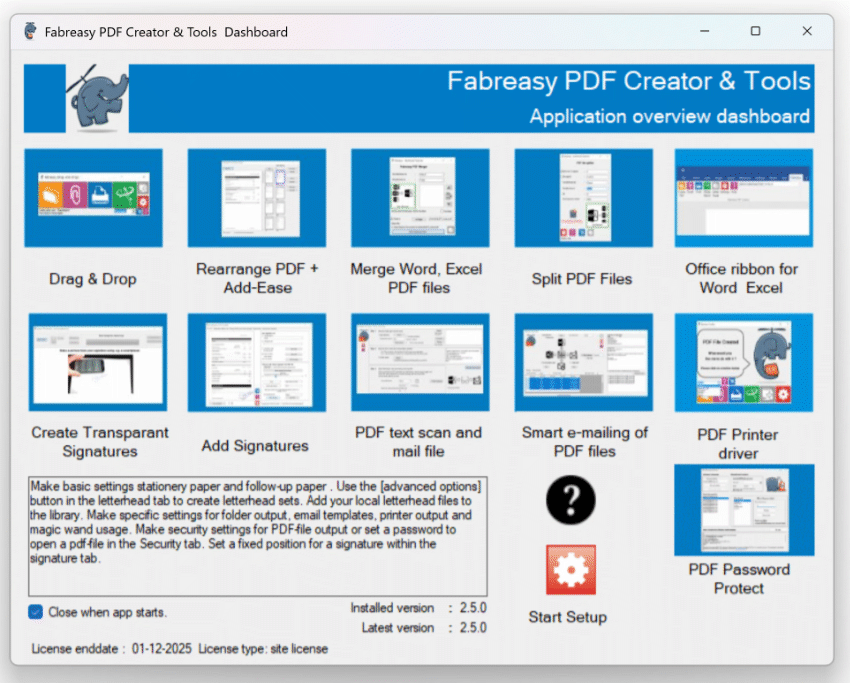
There’s more: Fabreasy Dashboard
All Fabreasy apps are bundled in the clear and intuitive Fabreasy Dashboard, giving you quick access to every feature Fabreasy has to offer.
Users call Fabreasy a Swiss Army knife for PDFs — a versatile tool that makes your daily work easier.
Who relies on Fabreasy — and what makes them choose it?
I want to deliver my reports quickly and efficiently including my Add letterhead to PDF. With Fabreasy, I can — directly from Excel or as a PDF from the reporting system. No hassle with printing and scanning, just a clean and professional end result.
💬 “Our reports always look professional. Thanks to Fabreasy, we save a lot of time and costs every single day.”
As an entrepreneur, I want my quotes and invoices to look professional without extra effort. Fabreasy ensures my PDFs instantly reflect my branding — no hassle in Excel or Word.
💬 “My quotes always look polished. My clients might not even notice, but it gives me a real sense of satisfaction.”
As an IT manager, I aim for more efficient document processes and lower costs. With Fabreasy, we save significantly on printing costs and streamline our workflow by adding Add letterhead to PDF directly to PDFs. On top of that, PDFs are now securely sent to clients.
💬 “With Fabreasy, we have simplified and secured our document processes. Less manual work, more consistency, and substantial cost savings. We can now manage with far fewer MFPs.”
Trusted by 1,000+ professionals

Try it for free, no strings attached!
Start your free 14-day Add letterhead to PDF trial today — no registration, no hassle




























Why PDF letterheads never work inside Word
Many users start with the same idea: “I need to place my PDF letterhead in Word.” It feels logical. After all, Word offers headers, images and page layout tools. Yet the moment you insert a PDF into Word, the problems begin. Word immediately converts the PDF into a raster image. Vector graphics, sharp logos and precise margins disappear. What should look professional instead becomes slightly blurry, stretched or compressed.
When exporting to PDF, the distortion becomes even more obvious. The layout shifts, spacing changes and colors look different from your original design. Users often repeat the process dozens of times, adjusting margins or resizing the header image, but the results never improve. This frustration is universal — and predictable — because Word is fundamentally unable to treat PDFs as layered page backgrounds.
Word has no concept of “page 1 letterhead” versus “continuation sheet.” If you place an image in the header, Word repeats it on every page. If you try to create separate headers for page ranges, the document becomes fragile: one margin change or page break can disrupt the entire layout. For businesses that send frequent letters, invoices or reports, this inconsistency becomes a real branding problem.
Why it never will
These limitations are not bugs; they are structural. Word was designed for text composition, not document branding with layered PDF assets. This means no update, setting or workaround will ever make Word apply PDF letterheads with the accuracy required for professional documents. The more complex the document, the more obvious the failure becomes.
This is why PDF specialists, graphic designers and IT departments all reach the same conclusion:
a PDF letterhead should never be embedded inside Word.
It should be applied during the PDF creation process — after the content is finished.
The professional method: apply your letterhead at export
Fabreasy solves the problem at the point where the document becomes a PDF, not inside Word where the layout is fragile. When you click “Create PDF” through Fabreasy, the software overlays your original PDF letterhead onto the generated PDF output with perfect alignment. Because it uses your vector-sharp PDF, the quality is identical to the designer’s file — no compression, no distortion, no shifting.
This approach guarantees:
• Perfect placement on page 1
• Accurate continuation sheets on pages 2 onward
• Identical output across all computers
• Sharp vector graphics at any resolution
• Full separation between content and branding layer
• Zero manual template maintenance in Word
Works beyond Word: Excel, accounting systems, reporting tools
Another major advantage is that Fabreasy is not limited to Word. Any Windows application that can print can benefit from the same automated letterhead process. Excel reports, accounting exports, HR letters, invoices, quotations and audit documents all receive the same professional appearance. This unifies branding across the entire organization without additional work.
Why professionals switch to Fabreasy
Teams no longer waste time adjusting headers, resizing images or checking PDF exports for mistakes. Fabreasy creates a reliable, repeatable workflow that ensures every outgoing document looks exactly as intended. For companies that value branding consistency, PDF quality and operational efficiency, Fabreasy becomes the obvious choice.
Below you will find the steps to set up Fabreasy PDF Creator so your letterhead is applied automatically, every time you generate a PDF.
FAQ – How to insert PDF letterhead in Word
1. Can Word place a PDF letterhead correctly?
No. Word cannot apply PDFs as page backgrounds. It converts them into images, which causes blurring and misalignment.
2. Why does my PDF letterhead look blurry in Word?
Because Word rasterizes PDFs. Vector graphics become pixel images, so logos and text lose sharpness.
3. Why do margins shift when I insert a PDF in Word?
Word repositions images based on header settings and page layout rules. Even small edits can shift the PDF.
4. Can I fix this with “Different First Page” in Word?
Not reliably. Word cannot manage page-1 letterheads and continuation pages without breaking when the layout changes.
5. Why does Word always fail with PDF letterheads?
Word is not designed to handle layered PDF templates. It has no engine for PDF overlays or background pages.
6. How do professionals add PDF letterheads to documents?
They don’t embed PDFs in Word. They apply the letterhead during PDF export using a tool like Fabreasy.
7. Is there any workaround to make PDF letterheads work in Word?
No stable workaround exists. PDF quality and alignment will always degrade inside Word.
8. What is the correct way to apply a PDF letterhead?
Use a PDF overlay solution. Fabreasy applies the original PDF letterhead automatically during PDF creation.
9. Will Fabreasy preserve the original PDF quality?
Yes. Fabreasy uses your vector PDF, ensuring perfect alignment and no compression or blurring.
10. Does this also work for Excel and other Windows applications?
Yes. Any Windows application that can print can use Fabreasy to apply letterheads automatically to exported PDFs.